
This training brings the AI tools used across day-to-day work into one practical resource: when to use Gemini inside Google Workspace, when to reach for broader Gemini and Gemini Enterprise capabilities, and how Rovo improves requirements, ticket quality, testing and change management inside Jira. Throughout, the focus is practical: pick the right tool, write a clear prompt, verify the output, and keep a person accountable for the result.
GOOGLE WORKSPACE
Gemini, built into the apps you already use
Gmail, Docs, Sheets, Slides, Vids, Meet, Calendar, Drive and Chat — this is where most day-to-day AI use should start, because it's already embedded, already permissioned, and needs no extra login.
GOOGLE WORKSPACE
Gmail: AI cheatsheet
Summarize a long thread without leaving the inbox
Gemini can summarize an email or thread and surface the important points. Use it to catch up quickly, then open the original messages before relying on dates, commitments, or decisions.
Source: Google Workspace, Gemini in Gmail.

Core moves
- Summarize any thread: click "Summarize this email," or ask "What's this email about?" in the side panel — works mid-thread too ("What did I miss?").
- Help Me Write ✦: click the pencil in Compose, type a rough instruction ("Decline meeting, suggest Thursday"), then use Formalize / Shorten / Elaborate to iterate. Free for all Gmail users, not just paid tiers.
- Proofread: grammar and tone check on a full draft (AI Pro/Ultra feature).
- Suggested Replies: reads the whole thread, not just the last line — hover to preview the full draft before you tap.
- @ file reference: in Help Me Write or the side panel, type
@+ filename to pull a Drive file's content directly into your draft — the single most underused Gmail trick. - "Catch me up": ask the side panel any time for a live inbox digest, generated on demand.
Vendor / quote comparison
Returning from leave
Decline / reschedule
Pull a file into a draft
Catch-up digest
Hidden features almost nobody uses
- Keyboard shortcuts are off by default: Settings → General → Keyboard shortcuts → On. Then Shift+/ opens the full cheat sheet in-app.
- Schedule Send cap: 100 scheduled emails at once — plan bulk sends accordingly.
- Templates: off by default (Settings → Advanced); ~50 templates/account — pair with a Gem for your most common reply types instead of maintaining dozens of templates.
in:snoozedsurfaces everything you've snoozed in one view.
Core keyboard shortcuts (once enabled)
| Action | Shortcut |
|---|---|
| Compose | c |
| Reply | r |
| Archive | e |
| Apply label | l |
| Search | / |
| Next / previous | j / k |
| Send | Ctrl/Cmd+Enter |
GOOGLE WORKSPACE
Google Docs: AI cheatsheet
Start, refine, and summarize documents with Gemini
Gemini in Docs can generate a first draft, work from files in Drive, refine existing writing, and summarize a document. Treat generated text as a working draft and confirm facts before publishing.
Source: Google Workspace, Gemini in Docs.

Core moves
- Help Me Write / Create: generate a full doc from a description — Gemini pulls the real referenced files, not placeholder text.
- Highlight-and-refine toolbar: select text → Rephrase / Shorten / Elaborate / Bulletize / Summarize / More Formal / More Casual. Prefer this over regenerating the whole doc — it preserves what already works.
- Help Me Understand: select dense text → right-click → get a plain-English explanation without leaving the doc.
- Multi-file @ references: reference several files with
@in one prompt.
Full doc from a description
Multi-file summary + draft
Power moves most people skip
- Match writing style: Side Panel → "Match writing style throughout" scans a multi-author doc and unifies tone.
- Auto-updating summary: type
@AI summaryinline — it regenerates as the doc changes; useful at the top of any long-lived report. - Audio version of a doc: generate a spoken read-out with a selectable persona and adjustable speed — good for reviewing a draft hands-free.
- Table-to-narrative: paste a data table, ask "Turn this into 3 paragraphs of executive commentary."
GOOGLE WORKSPACE
Google Sheets: AI cheatsheet
Build structured spreadsheets from a prompt
Gemini in Sheets helps structure spreadsheets, write formulas, summarize information, and surface patterns. AI-generated calculations and interpretations still need validation before they go into a report.
Source: Google Workspace, Gemini in Sheets.

Core moves
Build a full sheet from one prompt
Gemini proposes a plan, you approve it, then it builds the structure, formulas, and chart. Always sanity-check the formulas.
Natural-language cell formula
Consolidate multiple sources (high-demand use case)
- Natural-language formulas: click a cell → side panel → describe the logic in plain English ("look up the employee name from Sheet2 and return their department"). Works for SUMIFS, ARRAYFORMULA, IMPORTRANGE, QUERY.
- Fill with Gemini: start a column with a few examples → click Fill → it recognizes the pattern (categorize, extract, reformat, score) and completes the rest.
Power moves
- Chart from a description: select a range → side panel → describe the chart. Charts are fully editable and auto-regenerate as data changes.
- Explain this formula: click any complex formula cell → plain-English breakdown before you trust it.
- Error auditing: ask Gemini to audit the sheet for inconsistencies, blank cells, or data-type mismatches.
- Cross-sheet analysis: "Compare Sheet1 (Q1) and Sheet2 (Q2) and tell me which 3 items grew the most" — verify results on anything business-critical.
- Pull Gmail data into Sheets: "Create a sheet from all invoice emails I received this month."
GOOGLE WORKSPACE
Google Slides: AI cheatsheet
Create and refine presentation content inside Slides
Gemini in Slides generates slide content and imagery from prompts and Drive context. Use it to speed up a first version, then apply your organization's message, branding, and evidence.
Source: Google Workspace, Gemini in Slides.

The 5-minute deck workflow
- In-Slides generation: side panel → describe the deck → Gemini asks clarifying questions, proposes an outline for approval, then builds a fully native, editable deck.
- Match your brand automatically: attach an existing deck as a style reference: "Apply CURE's brand colors and use our default template."
- Canvas alternative route: gemini.google.com Canvas mode can also build a full deck from a topic or an uploaded doc, then export to Slides in one click.
Deck from a prompt
Power moves
- Refine slide-by-slide: "Make slide 3 simpler: bullet points only," "Add a chart from this data," "Remove the jargon on slide 2."
- Speaker notes on demand: "Write presenter notes for each slide as if I'm briefing a non-technical executive audience."
- Formatting tricks: "Make all slides consistent with slide 1's style," "Simplify each slide to max 3 bullets."
GOOGLE WORKSPACE
Google Vids: AI cheatsheet (the one people forget exists)
- Vids turns a text prompt into a produced video: storyboard, script, video clips per scene, and AI voiceover narration — all from a written brief.
- Typical workflow: generate storyboard → generate/refine script → choose audio and video style per scene → export.
- Best use case: turning a finished strategy doc or deck into a short internal explainer video for stakeholders who won't read the full document.
- Vids ↔ Slides crossover: convert a Slides deck into a Vids video with a presenter avatar.
Explainer from a doc
GOOGLE WORKSPACE
Google Meet + Calendar: AI cheatsheet
Meet
- Take Notes for Me: Activities panel → Take Notes for Me. Transcribes live, writes a structured summary, tags action items with owners, saves to Drive and attaches to the Calendar invite.
- Decisions log: notes include a dedicated Decisions section with status tags — Aligned, Needs Further Discussion, Disagreed, Shelved.
- Join-late catch-up: click "Summary so far" or ask the sidebar what was discussed before you joined.
- Works for in-person meetings too: open the Meet app → Take Notes for Me, without an active Meet call.
- Translated live captions: 60+ languages, each participant reads in their own preferred language.
Meeting recap for stakeholders
Calendar
- Describe, don't search: "Schedule a 45-min debrief with Ali and Marcus next week, avoid Monday mornings."
- Full event creation from a sentence: "Lunch with Nick downtown" generates date, time, and location suggestions.
- In-context conflict resolution: Gemini proactively suggests alternate times inside a conflicting event.
GOOGLE WORKSPACE
Google Drive + Chat: AI cheatsheet
Drive
- Ask Gemini in Drive: natural-language Q&A over your Drive content without opening files — "Find the vendor contract from March," "Show me documents Sarah shared about the rebrand."
- AI Overview in search results: search normally, and an AI Overview card summarizes the most relevant info at the top, with citations back to source files.
- Drive Projects: lock a fixed set of files/folders/emails as a persistent, shareable context — a team can have the same grounded conversation over the same file set without re-uploading, and files never leave their original location or permissions.
- Video & document analysis: double-click a video in Drive → Ask Gemini → "Summarize this video" or "List all action items from this recording."
- Never copies your files: Drive's Gemini respects existing permissions and DLP controls by design.
Find and cite the source
Chat
- Summarize a Space: "Summarize the last week of conversation in this channel" or "What decisions were made this week?"
- Ask Gemini across apps: "What did we decide about the vendor in our last meeting + the email thread?" — Chat is a selectable source inside the main Gemini app too.
- AI-drafted replies: click the star icon next to the reply box for longer, context-aware draft options.
GEMINI
Beyond Workspace: chat, research, and reusable assistants
gemini.google.com is where you go when a task outgrows a single app — deep multi-source research, a reusable persona, or turning an idea into a working prototype.
GEMINI
Gemini.com: power features cheatsheet
Deep Research plans before it produces the report
Use this when a question needs evidence from many sources, not just a quick answer. Gemini plans the research, works across sources, and returns a structured, citable report for you to review.
Official Google visual: Deep Research.
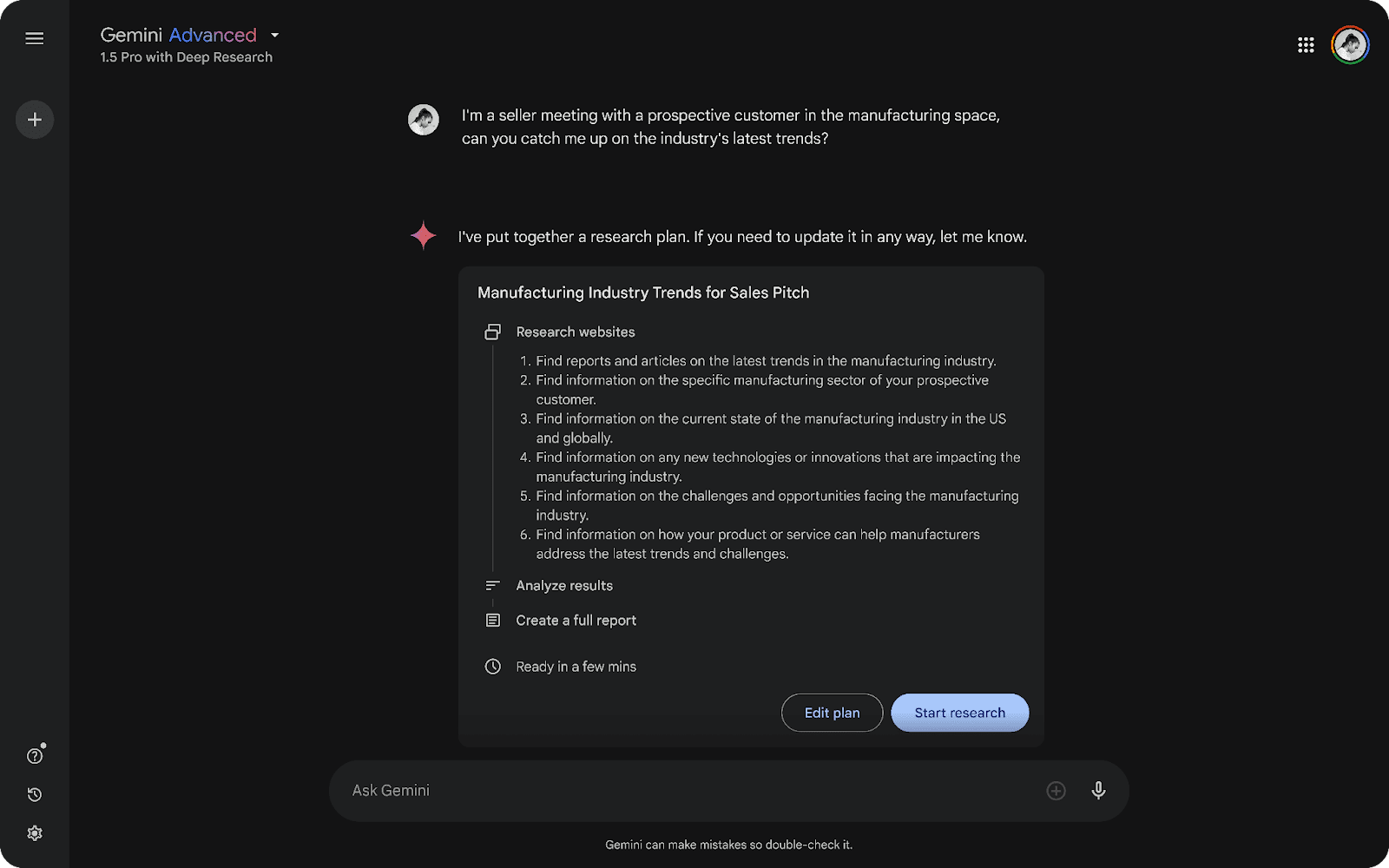
Deep Research
- Autonomous multi-source research agent: plan → search across dozens/hundreds of sources → iterate → deliver a cited report, typically 5–20 minutes.
- Best for: competitive/market research, literature reviews, "give me everything on X with citations." Overkill for a quick single-fact lookup.
- Can pull from your connected Gmail/Drive/Chat, not just the open web, when Workspace is connected.
Canvas
- Interactive workspace inside Gemini chat: live-preview HTML/React apps, Python scripts, infographics, quizzes — and full Slides decks exportable in one click.
- Can turn a Deep Research report directly into an app, infographic, or interactive quiz.
- Can turn a hand-drawn wireframe or whiteboard photo into a functional prototype UI — useful for early-stage mockups and presentation support.
- Available on every plan tier — usage limits scale with tier, not feature access.
Gems
- What it is: a saved persona + instructions + optional reference files, reusable forever instead of re-explaining context every time.
- Build approach: copy one of Google's premade Gems (Brainstormer, Career guide, Coding partner, Learning coach, Writing editor) and rewrite the instructions for your recurring task.
- Ground it with knowledge files: upload a style guide, FAQ, or product spec so outputs stay on-brand and on-policy.
- Sharing: Gems can be shared within CURE via link.
For technical and IT teams
Coding, debugging, and troubleshooting were among the most-requested AI skills at CURE. The Coding partner Gem, plus general chat, can explain an error, review a snippet, or draft boilerplate — always with a human confirming the change before it ships.
Debugging with a guardrail
Extensions / Connected Apps
- Invoke with
@AppName: @Gmail, @Drive, @Calendar, @YouTube, @Maps, and community-built extensions. - Must be turned on first: Settings → Extensions/Connected Apps.
GEMINI
Gemini Notebook (formerly NotebookLM)
Organize a project once, work from the same trusted sources
Add the material you want the AI to rely on, then ask questions, create summaries, and build learning outputs from that defined source set. Every answer comes with a citation.
Official Google visual: Gemini Notebook.
- What it's for: grounded research over a fixed, private set of your own sources (PDFs, Docs, audio, YouTube links, Drive files) — every answer cites its source, sharply reducing hallucination risk versus open chat.
- Audio Overviews: generates a 5–30 minute two-host discussion of your sources; Interactive Mode lets you pause and ask a question mid-way.
- Mind Maps: auto-generated visual maps of how concepts across your sources relate.
- Study tools: auto-generated study guides, glossaries, practice questions, flashcards.
CURE use cases
- Onboarding: upload all onboarding docs once — new hires query it directly, with citations.
- Competitive intel: upload industry reports, ask "what are the 3 biggest threats competitors highlight?"
- Briefing guides: generate a briefing guide from a stack of source docs for a client presentation.
GEMINI
Workspace Studio (no-code automation builder)
Describe the workflow in plain language, then let Studio build the flow
Workspace Studio turns repeatable work into AI-powered flows. Start with the business outcome, review the steps Studio generates, and keep approvals or high-impact decisions with people.
Official Google Workspace visual: Workspace Studio.

Build multi-step, cross-app automations in plain English — no code. Agents can span Gmail + Docs + Sheets + Calendar + Meet and reason over unstructured data, not just follow rigid rules.
High-value examples
GEMINI
Agent mode / Auto Browse
- Chrome Auto Browse: Gemini autonomously navigates websites to complete multi-step tasks — research, form-filling, price monitoring. Pauses for confirmation on sensitive steps (login, purchase). Preview-grade: verify results, don't set-and-forget on anything financial.
- Gemini in Chrome side panel: persistent sidebar that answers questions about the current page or other open tabs; highlight text → "Ask Gemini"; Alt+Q opens the panel with your selection pre-loaded.
CROSS-CUTTING
Decision framework: which tool, when
The single most useful table in this training. Check it before defaulting to plain chat out of habit.
| Situation | Use this |
|---|---|
| One-off quick question, brainstorm, short draft | Plain Gemini chat — no setup cost |
| Same task, same persona/instructions, 2+ times a week | A Gem |
| Grounded understanding of a fixed set of your own documents, citations matter | Gemini Notebook |
| Moving from understanding to a deliverable (app, deck, infographic, quiz) | Canvas |
| Synthesis across many external/web sources, 5–20 minutes is fine | Deep Research |
| Team needs a persistent, shared, permission-safe file set | Drive Project |
| Repeatable multi-step cross-app workflow that should run with little manual triggering | Workspace Studio agent |
| Need a Google-quality answer across CURE's connected systems (Workspace, Jira, Salesforce, etc.) | Gemini Enterprise search |
| Jira ticket, requirement, or change record needs review | Rovo |
CROSS-CUTTING
Prompt mastery for business users
The formula: Context + Task + Constraints + Format
- Context: who you are, what this is for, who reads it.
- Task: the exact action, with a verb — "draft," "summarize," "compare," not "help with."
- Constraints: tone, length, audience, what to avoid — make these objective ("3 sentences or fewer") not vague ("keep it brief"). Vague constraints raise hallucination risk because the model fills the gap with invented specifics.
- Format: bullet list, table, email, word count.
Weak vs. strong
Advanced moves
- Role-prompting: "You are a skeptical CFO reviewing this budget..." changes tone and rigor dramatically — this is literally how a Gem's persona is built.
- Few-shot examples: paste 1–3 example outputs as a target format for Gemini to imitate.
- Fixing a bad output — don't restart: point at the specific wrong part ("the tone in paragraph 3 is too casual") and use "Double-check response" before trusting any number or citation.
- Iterate out loud: "Good — now make it shorter and lead with the recommendation," rather than a fresh, unrelated prompt.
- Ask for options: "Give me 3 versions: one formal, one casual, one very brief" when you're unsure what tone lands best.
- Chain prompts across apps: Deep Research report → Canvas turns it into a deck outline → export to Slides → Gemini in Slides adds theme and notes → Gemini in Gmail drafts the distribution email referencing the deck via @-mention.
CROSS-CUTTING
AI landscape at CURE
Where Gemini fits in CURE's AI toolkit
Gemini for day-to-day Workspace work
Best fit: Gmail, Docs, Sheets, Slides, Drive, Meet, and Chat workflows where speed and native integration matter most. It's already embedded and stays inside the Workspace boundary CURE manages — the default for most people, most days.
Other tools for other jobs
Dense document analysis and coding-heavy reasoning may call for a different licensed tool; work with partners standardized on Microsoft 365 may call for Copilot. Start with Gemini for anything in Workspace; reach for another tool only when the task clearly calls for it.
Hallucination: the practical version
- Gemini generates the statistically most plausible next words, not verified facts — it states falsehoods with the same confident tone as truths.
- Highest-risk content: precise statistics, anything from the last 6–12 months, named citations, legal/medical/financial specifics.
- Mitigation habits: use "Double-check response," independently verify any number or quote before it reaches a client-facing document, prefer Gemini Notebook over open chat when facts must be traceable, and be specific — ambiguous prompts are themselves an accuracy risk.
What NOT to paste into any AI tool
- Passwords, API keys/tokens, tax IDs, bank details.
- Legal case files, medical/health records, client PII.
- Source code containing secrets, unreleased financial results, active-deal details, internal strategy not yet approved for wider release.
Rule of thumb: if you wouldn't want a human reviewer at Google to read it, don't paste it into a consumer-tier tool — and apply the same NDA/privilege-conscious judgment inside the enterprise tool too.
Enterprise vs. consumer Gemini
- CURE's Workspace Business/Enterprise Gemini: prompts, outputs, and Workspace data are not used to train Google's models and are not human-reviewed by default — materially different from a personal or free consumer account.
- IT/Admin console gives CURE full control: enable/disable Gemini per app per team, DLP and Information Rights Management can block Gemini from touching labeled-sensitive content, org-wide usage reporting.
GEMINI ENTERPRISE
The agentic platform above Workspace, M365, and Jira
Enterprise search, pre-built agents, a no-code Agent Designer, and the governance layer that makes it safe to run at scale — connected across Workspace, Microsoft 365, Salesforce, ServiceNow, Jira and Confluence.
GEMINI ENTERPRISE
Enterprise search & AI assistant
- Google-quality search over CURE's internal data with Gemini's reasoning layered on top — it retrieves facts and synthesizes answers from across the organization rather than just listing links.
- Pre-built connectors for Google Workspace, Microsoft 365, Salesforce, ServiceNow, Jira, and Confluence let people query emails, contracts, and technical documentation from one interface.
- Ask a question and the assistant summarizes what it finds; ask follow-ups to refine the answer.
- Provide context by uploading files or @-mentioning specific people and documents.
- User-directed saved memories: explicitly tell the AI to save or discard specific facts, overriding inferred preferences.
Cross-system client prep
GEMINI ENTERPRISE
Pre-built tools & agents
Gemini Enterprise ships with specialized pre-built agents, ready on day one. Find all of them in the Agents tab.
Deep ResearchAutomates complex information gathering: plans, searches internal and external sources, filters noise, and synthesizes a comprehensive, fully cited report.
NotebookLMUpload reports, papers, or videos and it instantly becomes an expert on your information — ask questions, get audio summaries, create decks and FAQs.
Idea GenerationFacilitates brainstorming by generating and ranking concepts against each other so teams filter through noise to the most viable options.
Data InsightsLets people "talk" to their data using natural language, without formulas or SQL — ingests CSVs, Sheets, or Excel and turns them into charts and narrative.
Data Insights: expense trend
GEMINI ENTERPRISE
Agent Gallery & Agent Designer
Go to Gemini Enterprise and click Agents. The gallery organizes every available agent into three categories:
Agent Designer is a no-code builder: define the agent's role, give it access to specific files, and share it with the team — no developer required.
Agent Designer: brand-voice reviewer
Skills & long-running work
Agents can be given specific skills and left to work on longer tasks, checking back in at defined points rather than needing a prompt for every step.
Shared workspaces
Persistent spaces that anchor files, conversation history, and human-AI collaboration together, so every team member has access to the same materials and context.
GEMINI ENTERPRISE
Connect your apps & data
- An AI model is only as good as the data it can access. Gemini Enterprise connects to organizational data of your choice to keep answers relevant and factual — a process called grounding. You can deselect data sources any time.
- Pre-built connectors cover Google Workspace, Microsoft 365, Salesforce, ServiceNow, Jira, Confluence, Slack, Box, Dropbox, and Zendesk.
- If someone asks "What is the status of the Project Alpha contract?", Gemini pulls answers from actual sources and cites them, instead of inventing something plausible-sounding.
- Zero-copy architecture: for sources like Drive, OneDrive, and SharePoint, Gemini retrieves information at query time without copying it into a separate index — documents never leave their original location.
Example: cross-platform workflow
Jira + SharePoint, combined
The result: a ready-to-send email grounded in real-time data from two different systems, with no manual copying between dashboards.
GEMINI ENTERPRISE
Security, data governance & policy controls
| Control | What it does |
|---|---|
| Centralized dashboard | IT admins view, audit, and manage every agent across the org. |
| Model Armor | Screens for malicious inputs like prompt injection and filters outputs to prevent leaks of sensitive data. |
| Data sovereignty | Define where data is stored and processed to meet regional requirements. |
| Observability | Logs, traces, and metrics give full transparency into agent invocations and data handling. |
| Agent & Tool Registry | A single pane of glass to discover, manage, and audit every agent and tool operating across CURE. |
| Agent Gateway | Central enforcement point for policies governing agent-to-agent and agent-to-tool interactions. |
TRANSLATED INTO DAY-TO-DAY WORK
Example use cases by role
Scenario
An Account Executive is meeting a high-stakes client with little time to prepare.
The pain
Hours spent hunting client info across CRMs, folders, and public databases.
The solution
A unified, permissions-aware view of corporate data and the web via Salesforce, SharePoint, and Drive.
Example prompt
"My customer is Cymbal Insurance, meeting their Head of Procurement Thursday. Find their latest earnings report and give me talking points."
Scenario
A finance lead spots an expense anomaly but can't pinpoint the cause without a custom query.
The pain
Extracting a narrative from raw data is tedious and usually needs an already-overbooked analyst.
The solution
Data Insights lets employees "talk" to raw CSVs, Sheets, or Excel files directly.
Example prompt
Upload a raw expense ledger and ask for the top 5 expense categories quarter-over-quarter, with a visualization.
Scenario
Production monitoring turns up failed jobs and no one has time to triage them all manually.
The pain
Sorting failures by cause is slow, repetitive, and easy to deprioritize until something breaks loudly.
The solution
Enterprise search + Data Insights group failures and surface the pattern in minutes, not hours.
Example prompt
"Review today's failed jobs, group them by probable cause, and recommend what should be investigated first."
GEMINI ENTERPRISE
Gemini Enterprise + Google Workspace
Connecting Gemini Enterprise with Google Workspace unlocks value through contextual awareness: agents can reason and share memory, so you don't need to re-prompt every time you switch tools.
Docs → Gmail: if you define a strategy in Docs, an agent in Gmail knows the context when you ask it to draft a team update.
Meet → Docs: notes from Gemini in Meet turn into suggestions and action items shared with attendees in a Doc.
Drive → Slides → Vids: presentations built with sources from Drive can become AI-powered videos with Vids.
Drive: Gemini in Drive can answer questions about your files and create audio overviews and summaries.
GEMINI ENTERPRISE
Upskilling the workforce with AI
This begins with a human-in-the-loop mindset: employees are editors-in-chief who retain full accountability for their work, and AI accelerates human creativity and judgment. Micro-learning — short, targeted modules people can apply immediately — tends to work better than long traditional programs.
Central guidance
An AI Council defines governance and best practices for the organization.
Internal champions
Early adopters act as peer coaches to guide teams and share success stories.
Measurement
Leaders track adoption and sentiment, tailoring learning to different proficiency levels.
JIRA + ROVO
Rovo for Jira: AI embedded in the team's change workflow
Jira is CURE's system of record for requirements, development, testing, approvals, and change management. Rovo makes that record faster to build and more complete — without becoming the control owner.
Find. Understand. Improve. Act — with the human still accountable.
Rovo is built around finding organizational knowledge, learning from context, and acting through Search, Chat, Agents and Studio. For this team, those capabilities matter most when they improve requirements, ticket quality, test readiness, and release communication.

Daily Jira digest
What the team should be able to do after this training
Find work faster
Use natural-language Rovo Search to locate relevant tickets, documentation, decisions, and prior incidents.
Improve requirements
Challenge vague requirements, surface missing acceptance criteria, and identify questions before development begins.
Strengthen change evidence
Check whether implementation, testing, validation, rollback, risk, and approval information is actually present.
Spot automation opportunities
Move repetitive review and summarization toward agents and automation without automating accountability.
Where Rovo is most useful in the Jira lifecycle
| Workflow | What Rovo can assist with | Human responsibility remains |
|---|---|---|
| Requirement intake | Summarize request, structure requirements, expose gaps, draft acceptance criteria | Confirm business intent and approve the requirement |
| Development readiness | Identify dependencies, open questions, impacted components | Technical design and implementation decisions |
| Testing | Draft positive, negative, regression and exception scenarios | QA determines coverage, executes testing, records evidence |
| Change management | Check completeness of scope, risk, implementation, validation, rollback | Change owner and approver make the decision |
| Release communication | Summarize completed tickets into business-readable release notes | Owner validates accuracy before publishing |
| Historical research | Find similar tickets, past defects, prior resolutions | Engineer determines whether the historical case applies |
Product visuals in this section are from Atlassian's public Rovo materials. Product behavior and availability can change — verify against your tenant before relying on a feature live.
JIRA + ROVO
Rovo Search, Chat, Agents and Studio
You don't need to memorize product terminology. What matters is choosing the capability that matches the work: finding something, understanding something, performing a defined task, or automating a repeatable workflow.
Rovo Search
Best when you know roughly what you need and want a list of relevant Jira, Confluence, or connected results to inspect.
Rovo Chat
Best for summarizing, comparing, transforming, and asking follow-up questions conversationally.
Rovo Agents
Specialized AI teammates configured with instructions, knowledge, and actions for a particular kind of work.
Rovo Studio
Atlassian's no-code environment for building agents, automations, and apps — mainly an advanced/IT-track tool.


JIRA + ROVO
Rovo prompt fundamentals
Clear task, useful context, logical structure, and a stated format — plus one more discipline for Jira work: tell Rovo what it must not assume.
What exactly should Rovo do?
Which ticket, page, project, or audience matters?
What should it check, extract, or compare?
Table, bullets, acceptance criteria, status summary?
What should be marked unknown instead of inferred?
Useful follow-up prompts
JIRA + ROVO
When to use Search vs. Chat
| Situation | Use | Example |
|---|---|---|
| You need the actual prior tickets | Search | "Find Jira issues about address verification updated in the last 6 months." |
| You found 8 tickets and need the common pattern | Chat | "Compare these issues and summarize recurring symptoms, root causes, and fixes." |
| You need everything assigned to a project/component | Search | "Show open production-support issues for [component] assigned to [team]." |
| You need a management update | Chat | "Using these tickets, summarize completed work, blockers, decisions needed and next steps." |
Search → understand → create
JIRA + ROVO
Writing better requirements
Rovo's biggest value here isn't writing requirements for the team — it's challenging and improving them before development starts.
Standard requirement-review prompt
A thin ticket becoming a good one
Requirement: Add MFA for agency users.
Have Rovo surface the questions a developer would ask anyway, before the ticket ever reaches a sprint:
JIRA + ROVO
Ticket quality, testing & development readiness
Development-readiness prompt
Test-scenario prompt
JIRA + ROVO
Change-management review
Jira holds CURE's change-management evidence, so Rovo's second major job is reviewing a change record for completeness — as a quality-control layer, not the control itself.
Change-completeness review prompt
JIRA + ROVO
Rovo Agents, Studio & Jira automation
Once the team is comfortable with Rovo as an assistant, repetitive review steps can move toward agents and automation. Rovo Studio is Atlassian's no-code environment for building agents, automations and apps — the important concept is what may safely be automated, not the builder UI itself.
Use the READ → RECOMMEND → WRITE → ACT model
| Level | Example | Control expectation |
|---|---|---|
| READ | Find related issues, summarize a change | Normal verification of sources |
| RECOMMEND | Suggest component, priority, missing fields, test scenarios | Human accepts/rejects |
| WRITE | Draft/update description, comments, release notes | Human review before relying on the record |
| ACT | Assign, transition, create records, trigger another workflow | Stronger permissions, testing, monitoring, approval design |
Automated release notes (high-demand use case)
JIRA + ROVO
The governance boundary
Official Atlassian learning references
RESPONSIBLE AI
Privacy, governance & rules of the road
The tools in this training are powerful precisely because they're managed, permissioned, and reviewed. Here's what to keep in mind every time.
AI doesn't replace how you work — it removes the work that got in the way.
QUICK REFERENCE
Keyboard shortcuts master list
| App / surface | Shortcut | Action |
|---|---|---|
| Gmail (enable first) | Shift+/ | Open full shortcut cheat sheet |
| Gmail | c / r / e / l | Compose / Reply / Archive / Label |
| Gmail | / | Search |
| Gmail compose | Ctrl/Cmd+Enter | Send |
| Chrome + Gemini | Alt+Q | Open Gemini side panel with current selection |
| Docs / Sheets / Slides | Ctrl+/ | Show the app's own shortcut list |
QUICK REFERENCE
Turn this into a credential
- Google Workspace with Gemini learning path (skills.google, also on Coursera) — covers this cheat sheet's core skill set. ~1 week self-paced, ~2 hrs/week.
- Gemini for Google Workspace Professional Certificate (edX, with Google Cloud) — a formal credentialed version of the same skills.
- Google AI Professional Certificate (grow.google/ai-professional, on Coursera) — broader "AI fluency at work" cert across 7 courses.
- Free companion guide: Google's "Quick start guide to Google AI at work" PDF (grow.google/ai) — a good leave-behind after this session.
QUICK REFERENCE
Frequently asked questions
PROMPT LIBRARY
One place for every prompt in this training
Filter by tool, search by keyword, and copy any prompt straight into Gemini, Rovo, or wherever you're working. Every card below is a real, ready-to-use example — adjust the bracketed details for your own task.
Catch up after time off
Compare vendor quotes
Decline and reschedule
Draft from a file
Daily inbox digest
Full document from a brief
Multi-file summary + draft
Table to narrative
Plain-English explanation
Build a tracker from scratch
Consolidate multiple sources
Natural-language formula
Cross-tab comparison
Cell categorization function
Deck from a prompt
Refine one slide
Speaker notes on demand
Explainer video from a deck
Meeting recap for stakeholders
Describe, don't search
Catch up on a late join
Find and cite a policy
Summarize a Chat Space
Video or recording summary
Deep Research brief
Debugging with a guardrail
Wireframe to prototype
Ask for options, not one answer
Cross-system client prep
Data Insights: spend trend
Cross-platform: Jira + SharePoint
Triage failed jobs
Brand-voice review agent
Daily Jira digest
Requirement review
Test scenarios from requirements
Change-completeness check
Release notes from completed work
Find similar historical work
TRAINING FEEDBACK
Help us improve the training
Quick and simple: thumbs up or down, your name, and any comments. It takes about 15 seconds.
Where responses go
Every submission is saved to this browser and — once you connect the Google Sheet below — also recorded centrally for the training team.
PASTE_GOOGLE_APPS_SCRIPT_WEB_APP_URL_HERE in this page's HTML with the deployment URL. Every submission will then append a row with timestamp, name, rating, and comments.
function doPost(e) {
  var sheet = SpreadsheetApp.getActiveSpreadsheet().getActiveSheet();
  var p = e.parameter;
  sheet.appendRow([new Date(), p.name, p.rating, p.comments, p.source]);
  return ContentService.createTextOutput(JSON.stringify({status:"ok"})).setMimeType(ContentService.MimeType.JSON);
}

// Deploy → New deployment → type "Web app" → Execute as "Me" → Who has access "Anyone" → Deploy.
// Copy the Web app URL into this file's form action= in place of
// PASTE_GOOGLE_APPS_SCRIPT_WEB_APP_URL_HERE.